EPUB reader for iPad: three free ways to read EPUB files
Looking for an EPUB reader for iPad? You already have one, and there are two more that cost nothing. No conversion and no subscription needed.
This guide shows the three ways to read EPUB on iPad: Apple Books, a web reader in Safari, and a third-party reading app. Each takes under a minute to set up.
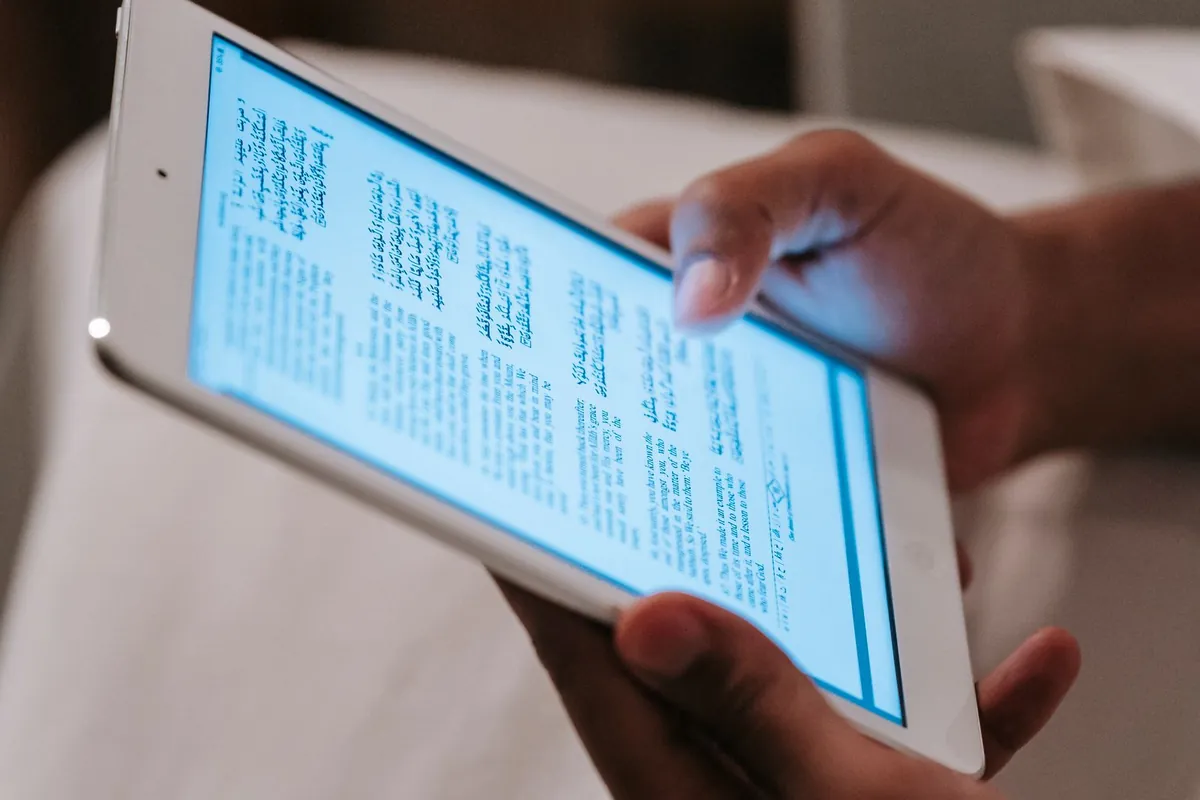
Option 1: Apple Books, the reader already on your iPad
Apple Books is installed on every iPad and reads DRM-free EPUB files without any setup. It syncs your position and highlights to an iPhone or Mac signed in with the same Apple ID.
- Get the file onto the iPad. Downloads from Safari land in the Files app under Downloads. Email attachments, AirDrop and cloud drives work too.
- Tap the
.epubfile. iPadOS opens it in Books. If a preview appears instead, tap Share and choose Books. - Read. The book is added to your library. Swipe or tap the page edges to turn pages, and use the Aa menu to change font and theme.
If Books is missing, reinstall it free from the App Store. EPUB files will open in it again.
Option 2: Read EPUB on iPad in Safari, no app needed
A web reader is the fastest option when you cannot or do not want to install anything: a school iPad, a shared tablet, or a book you only need once. EPUB Reader Online runs inside Safari and works on any iPad that can open a web page.
- Open epubreaderonline.com in Safari.
- Tap Upload EPUB and pick the file in the Files app, or drag the file onto the page from a Files window in Split View.
- Start reading. The book opens with its table of contents. Tap the arrows, or press the arrow keys on a connected keyboard, to move between chapters, and use A− / A+ for text size.
The file is unpacked on the iPad itself and is never uploaded. Your position is saved in Safari, so the same file reopens where you left off.
Add the page to your Home Screen from the Share menu. It then opens like an app, full screen, with no browser bar.

Option 3: Other free reading apps
A dedicated reader is worth it if you keep a large library or want features Books lacks, such as custom fonts, dictionaries or reading statistics. Kindle (through Send to Kindle, which accepts EPUB), Kobo and Google Play Books are free and all run on iPad.
Each app has an import or upload step. After that the book behaves like any title bought in that store.
Check that the app says "import EPUB" or "open files" before relying on it. A few store apps only show books bought from them.
Which EPUB reader for iPad should you choose?
- Apple Books – the default for most people; syncs across Apple devices and handles a large library.
- Safari web reader – best for a one-off read, a managed or shared iPad, or when privacy matters; nothing is installed or uploaded.
- Third-party app – best if your library already lives in Kindle, Kobo or Google Play Books.
Make the most of the bigger screen
An iPad shows far more text per page than a phone, so most reflowable EPUBs are comfortable in portrait at the default size. Turn the iPad sideways in Books for a two-page spread.
Fixed-layout EPUBs such as comics, textbooks and picture books are designed for tablet screens. They look cramped on a phone but fit an iPad well.
With Split View you can keep notes or a dictionary next to the book. Drag a second app in from the Dock while reading.
Troubleshooting
The file will not open in Books. It is probably DRM-protected. Books bought from most stores are locked to that store's app, and no iPad reader can open them.
The file ends in .acsm. That is an Adobe DRM licence file, not a book. It cannot be read directly on an iPad.
Safari downloaded the file but you cannot find it. Open the Files app, tap Browse, then Downloads.
Images or tables look wrong. Rendering differs between apps, so try another reader. Books and the Safari reader handle most standard EPUB 3 files.
Frequently asked questions
Does an iPad have a built-in EPUB reader?
Yes. Apple Books comes pre-installed on every iPad and opens DRM-free EPUB files. Tap the file in the Files app, or send it to Books from the Share sheet.
Can I read EPUB on iPad without installing an app?
Yes. Open epubreaderonline.com in Safari, tap Upload EPUB and choose the file. The book is rendered in the browser and nothing is installed or uploaded.
Can I read EPUB files in the Kindle app on iPad?
Yes, through Send to Kindle. Upload the EPUB on Amazon's Send to Kindle page or email it to your Kindle address, and it appears in the Kindle app on your iPad.